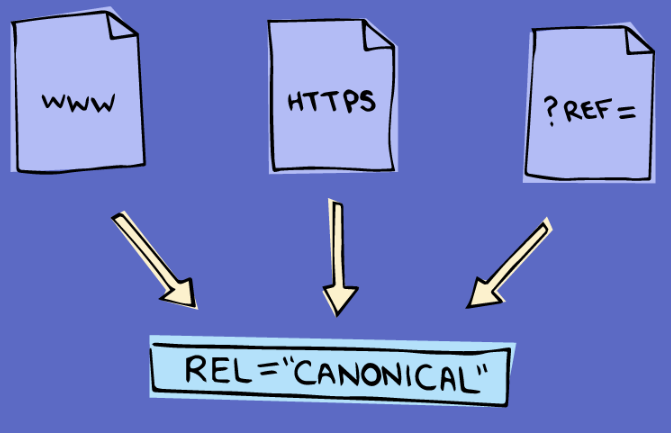
A canonical tag is an HTML element that tells search engines which URL is the authoritative version of a page when the same or very similar content is accessible at more than one address. If you have ever wondered why pages with near-identical content sometimes lose rankings, or seen the warning “Duplicate without user-selected canonical” in Google Search Console, the canonical tag is both the cause and the fix.
In this guide, I cover everything you need to know about canonical tags: what they are, when to use a canonical tag, how to add a canonical tag to your site, and the common errors that undermine them. Importantly, canonical tags are hints to Google, not commands. I cover what this means in practice below, because it changes how you should think about implementing them.
Say you run an online clothing store and your blue product is accessible at example.com/product-blue, your red version at example.com/product-red, and your green version at example.com/product-green. All three pages are nearly identical. Without a canonical tag, Google has to decide which one to rank, and it may not pick the one you want. With a canonical tag, you tell Google: this is the master URL, consolidate everything here.
What Is a Canonical Tag?
A canonical tag is a snippet of HTML code placed in the <head> section of a page. It uses the rel="canonical" attribute to specify the preferred URL for search engines to index. The syntax looks like this:
<link rel="canonical" href="https://example.com/preferred-page/" />When Google crawls a page with this tag, it treats the URL in the href attribute as the authoritative version and consolidates ranking signals, link equity, and crawl activity to that address. Any duplicate or near-duplicate URLs pointing to the same canonical should no longer compete against each other in search results.
The e-commerce example above illustrates the most common use case. Each colour variant of a product page is a near-duplicate. Adding a canonical tag to each variant pointing to the main product page tells Google to rank the main page rather than splitting signals across three near-identical URLs.
One important thing to understand: Google treats canonical tags as a strong hint, not a directive. If other signals, such as backlinks, internal links, or sitemap entries, point strongly to a different URL, Google may choose that URL as canonical instead, even if you have declared another. This is confirmed in Google Search Central documentation, which states that Google “perceives canonical tag as a signal, not as a directive.” This is why getting your other signals aligned with your canonical declarations matters as much as the tag itself.
Why Are Canonical Tags Important in SEO?
Canonical tags solve three problems that regularly cost websites ranking positions and organic traffic. I have seen all three on client sites, and the impact of getting them wrong is more significant than most business owners realise.
Preventing Duplicate Content Issues
When the same content is accessible at multiple URLs, search engines have to determine which version deserves to rank. Without a canonical signal, they may distribute authority across all versions, or index a version you did not intend. Canonical tags give search engines a clear instruction and remove the ambiguity. They ensure your intended page is the one that appears in search results.
Consolidating Link Equity
If external sites link to different URL versions of your page, some to http://, some to https://, some with www and some without, that link equity is spread thin across multiple addresses rather than accumulating on one. Canonical tags consolidate those ranking signals onto your preferred URL, making the page stronger in search. A page accumulating links to four different URL variants is effectively weaker than a page accumulating the same links all to one URL.
Improving Crawl Efficiency
Search engine bots operate within crawl budgets, particularly on larger sites. If Googlebot spends its crawl allowance re-crawling near-duplicate pages, it has less capacity to discover and index your new or updated content. Canonical tags direct crawlers to the pages that matter, improving the efficiency of each crawl and reducing the risk of important pages being missed. For businesses managing large e-commerce catalogues or news archives, this benefit alone justifies the investment in proper canonical implementation.
Understanding Duplicate Content
What Constitutes Duplicate Content?
Duplicate content does not only mean two pages with identical copy. In practice, most duplication arises from how URLs are structured rather than content being deliberately copied. The most common sources I see are:
- URL variations with tracking or referral parameters:
example.com/pageandexample.com/page?ref=newsletteroften serve identical content - HTTP and HTTPS versions, or www and non-www versions, both resolving without a redirect
- Dynamic URL parameters in e-commerce: filter options, sort orders, and session IDs appending to product or category URLs
- Syndicated content published on multiple domains simultaneously, without a canonical pointing back to the original source
Most of these are unintentional. They arise from how websites are built and how users and marketing tools interact with URLs. The result is the same regardless of intent: Google sees multiple URLs with the same or very similar content and has to decide which one to treat as authoritative.
SEO Implications of Duplicate Content
The consequences of unresolved duplicate content go beyond a theoretical drop in rankings. From what I have seen across hundreds of campaigns, the practical effects are:
- Diluted rankings: ranking signals are split across duplicate URLs, weakening all of them instead of concentrating authority on one
- Wasted crawl budget: bots crawl and recrawl duplicate pages, leaving less capacity for unique content
- Lost link equity: backlinks pointing to different URL versions of the same page accumulate authority on multiple weak URLs rather than one strong one
- Unintended pages indexed: without a canonical, Google may decide to index a parameter-based or session URL rather than your preferred page, creating a poor user experience for anyone who lands there from search and also surfacing pages in orphan page audits you had not anticipated
When to Use a Canonical Tag
Use a canonical tag whenever the same or very similar content is accessible at more than one URL, regardless of whether the duplication was intentional. These are the eight situations I recommend adding one:
- E-commerce URL parameters for product variations: colour, size, and filter variants of product pages should canonical back to the main product page. For example,
/product-blue/,/product-red/, and/product?size=XLshould all point to/product/. - WWW vs non-WWW versions: if both
www.example.com/page/andexample.com/page/are accessible, add a canonical on both pointing to your preferred version, and ensure your 301 redirect configuration matches. - HTTP vs HTTPS: particularly relevant during or immediately after a migration. Even after redirects are set up, residual HTTP URLs sometimes remain accessible. A canonical reinforces the HTTPS version as authoritative.
- Trailing slash vs no trailing slash:
example.com/page/andexample.com/pageare technically different URLs. Choose one version and canonical to it consistently. - Session IDs and tracking parameters:
example.com/page?sessionid=abc123andexample.com/page?utm_source=emailare duplicate URL variants. A self-referencing canonical on the clean URL protects it from being displaced by tracked versions in Google’s index. - Pagination: use self-referencing canonicals on paginated pages (page 2, page 3, and so on). Do not canonical all paginated pages to page 1. I cover why this is a common mistake in the “When NOT to Use a Canonical Tag” section below.
- Syndicated or republished content: if your articles are republished on partner sites or aggregators, ask the publisher to add a canonical tag pointing back to your original URL. This protects your original from being outranked by its own syndicated copies. A news site, for example, should request that any partner republishing its stories adds
<link rel="canonical" href="https://yoursite.com/original-article/">in the<head>. - Non-HTML documents such as PDFs: if a PDF is accessible at multiple URLs or is a version of a web page, a canonical can be applied via the HTTP header method. I cover how to do this in the implementation section below.
When NOT to Use a Canonical Tag
In my experience, these are the three canonical tag misuses I see most often on client sites. Each one causes real ranking problems and takes time to undo.
Non-Duplicate Pages With Distinct SEO Value
If two pages cover similar but distinct topics, adding a canonical from one to the other will suppress the weaker page from ranking entirely. The canonical is not a soft preference signal in this context. It is a deliberate instruction to Google to stop indexing that page as a standalone result. If both pages have genuine SEO value and target different queries, give them self-referencing canonicals and let them rank independently. I see this error most often when site owners try to consolidate thin content: they canonical related blog posts to a pillar page when what they actually need is to either merge the content or improve each page individually.
Paginated Pages Canonicalised to Page 1
Do not canonical example.com/category/page/2/ to example.com/category/. This removes the paginated pages from Google’s index entirely, preventing products, articles, or listings on those pages from being discovered or ranked. The correct approach is a self-referencing canonical on each paginated page: page 2 canonicals to page 2, page 3 canonicals to page 3. If deep pages are generating thin content concerns, address those pages individually rather than mass-canonicalising to page 1.
When a 301 Redirect Is the Better Choice
A canonical tag keeps both URLs accessible. A 301 redirect removes the duplicate entirely by sending users and bots to the preferred URL automatically. If you have no reason to keep the duplicate URL live, for example an old product URL that has been superseded, a URL created in error, or a legacy domain being consolidated, a 301 redirect is cleaner and more authoritative than a canonical. I cover the full comparison in the “Canonical Tag vs 301 Redirect” section below.
How to Add a Canonical Tag
The fundamental method for adding a canonical tag is placing the following code in the <head> section of the page’s HTML:
<link rel="canonical" href="https://example.com/preferred-page/" />Always use the full, absolute URL including the protocol (https://) and the trailing slash if your site uses one. The tag must appear in the <head>, not the <body>. Google will ignore canonical tags placed outside the head section.
WordPress (Yoast SEO and Rank Math)
Both Yoast SEO and Rank Math handle canonical tags automatically. For most pages, the plugin generates a self-referencing canonical without any manual input. To set or override a canonical manually, open the page or post editor, scroll to the SEO plugin panel, navigate to the “Advanced” tab, and enter your preferred canonical URL in the canonical URL field. This allows you to specify a different canonical for any page where the default self-referencing tag is not appropriate, for example if you are consolidating a set of similar product pages.
Shopify
Shopify automatically generates canonical tags for product pages, including product variant pages, pointing them back to the main product URL. For most standard Shopify stores, canonical implementation is handled without intervention. If you have a custom theme or unique URL structure that creates additional duplicate URLs, you can add or override canonical tags by editing the theme.liquid file in the theme editor. For complex cases, working with a developer or using a dedicated SEO app is advisable.
Magento
Magento includes built-in canonical tag settings. Navigate to Stores > Configuration > Catalog > Search Engine Optimisation and enable canonical link meta tags for both product pages and category pages. Enabling these settings will generate canonical tags automatically across your catalogue. Verify the output with a crawl tool after enabling, since some Magento configurations generate canonical tags pointing to filtered or paginated versions rather than the clean base URL.
Custom CMS
For sites not running one of the above platforms, canonical tags need to be added manually to the <head> template of each page type. In practice, this means working with your development team to output the canonical tag dynamically using the clean canonical URL as a variable. Hardcoding individual canonical tags per page is not scalable for sites with more than a handful of pages.
HTTP Header Method (for PDFs and Non-HTML Documents)
HTML pages use the <head> section for canonical tags. PDFs and other non-HTML documents have no head section, so the canonical must be delivered via the HTTP response header instead. The syntax is:
Link: <https://example.com/preferred-page>; rel="canonical"This header is added at the server level and applies to any URL serving the document. If your site hosts white papers, product specification sheets, or other PDFs that are accessible at more than one URL, this is the only method available for canonical implementation.
Verifying Your Canonical Tags
After implementation, use Google Search Console’s URL Inspection tool on the canonical page. Under “Google’s canonical” and “User-declared canonical,” verify that both fields point to the same intended URL. A mismatch means Google has overridden your canonical declaration, which is a signal to review your other on-page signals. Most SEO plugins implement self-referencing canonicals automatically. Verify this is enabled in your plugin settings to ensure clean URLs are protected from tracking parameter variants.
Canonical Tag vs 301 Redirect
This comparison comes up in almost every technical SEO conversation I have with clients, and the distinction matters. Both methods address duplicate content, but they work differently and suit different situations.
A canonical tag keeps both URLs accessible to users and bots while signalling to Google which one to rank. A 301 redirect removes the duplicate URL by automatically sending all traffic and crawling activity to the preferred destination. Users who visit the redirected URL are taken directly to the canonical page without seeing the original.
The key technical difference is that Google treats a canonical as a hint and may ignore it if other signals point elsewhere. This never happens with a 301 redirect. A 301 is a server-level instruction that Google cannot override. If you need Google to definitively follow your preference, for a retired URL, a merged page, or a migrated domain, a 301 redirect is the stronger signal. For more detail on redirect types, see my guide on 301 vs 302 redirects.
| Factor | Canonical Tag | 301 Redirect |
| Keeps duplicate URL accessible? | Yes | No: users and bots are forwarded |
| Can Google override it? | Yes: it is a hint, not a directive | No: it is a server-level instruction |
| Consolidates ranking signals? | Yes (as a strong signal) | Yes (definitively) |
| Best used when | Both URLs need to remain live (e.g. product variants, tracked landing pages) | You want to permanently remove the duplicate (e.g. retired pages, domain merges) |
In summary: use a canonical tag when you need both URLs to remain accessible. Use a 301 when you do not.
Canonical Tags and hreflang
For international sites targeting multiple languages or regions, canonical tags and hreflang tags must work together consistently. hreflang tells Google which language and regional version of a page to serve to users in different locations. Canonical tags tell Google which URL is the primary version for indexing.
A common mistake is using a canonical tag to consolidate all regional language variants to a single URL. This effectively removes the regional pages from search results for their target audiences. The correct approach is to use self-referencing canonicals on each regional page and use hreflang to specify the relationships between them. For more on implementing international targeting correctly, see my full guide on hreflang tags.
For example, if you have an English (US) page and an English (UK) page covering the same content, the correct implementation looks like this:
<!-- On the en-US page -->
<link rel="canonical" href="https://example.com/en-us/page/" />
<link rel="alternate" hreflang="en-us" href="https://example.com/en-us/page/" />
<link rel="alternate" hreflang="en-gb" href="https://example.com/en-gb/page/" />

<!-- On the en-GB page -->
<link rel="canonical" href="https://example.com/en-gb/page/" />
<link rel="alternate" hreflang="en-us" href="https://example.com/en-us/page/" />
<link rel="alternate" hreflang="en-gb" href="https://example.com/en-gb/page/" />
Each page has a self-referencing canonical and both pages carry the full set of hreflang annotations. The canonical declares each URL as its own preferred version; the hreflang annotations tell Google how the two are related for regional targeting.
GSC: “Duplicate Without User-Selected Canonical” Status
If you use Google Search Console’s Page Indexing report, you may have seen a group of URLs under the status “Duplicate without user-selected canonical.” This means Google has identified pages on your site that it considers duplicates, but you have not added a canonical tag to any of them to declare your preferred version. Google is left to make that decision itself, and it may not choose the URL you want ranked.
Why This Status Is a Problem
When Google selects a canonical without your input, the consequences are predictable and costly. The page you intended to rank may not be the one Google indexes. Authority from backlinks and internal links may be credited to a URL you did not intend. Crawl budget is consumed across multiple duplicate variants instead of being directed to your key pages. Users arriving from search may land on a parameter-based or filtered URL, creating a poor experience. Each of these represents a direct SEO cost that a canonical tag resolves quickly.
How to Resolve It
The resolution process is simple and can be completed in four steps:
- Identify the affected URLs: in Google Search Console, navigate to Indexing > Pages and click on the “Duplicate without user-selected canonical” status to see the full list of affected URLs.
- Determine your preferred URL: for each group of duplicates, decide which URL should be the canonical. This is typically the clean, parameter-free version of the page without session IDs, tracking codes, or filter appends.
- Add the canonical tag: insert
<link rel="canonical" href="https://example.com/preferred-url/">in the<head>of every duplicate URL in that group, pointing each one to the preferred version. - Validate and monitor: use the URL Inspection tool in GSC to verify the “User-declared canonical” field matches your intended URL. Schedule regular crawls with Screaming Frog or Ahrefs to catch new instances as your site grows.
Common Canonical Tag Errors
In my experience reviewing technical audits across hundreds of sites, these seven canonical tag errors come up repeatedly. Each one is avoidable once you know what to look for.
- Canonical URL returns a 404 error
If the URL specified in your canonical tag returns a 404 status, Google will be unable to confirm the preferred page exists and will likely ignore the canonical declaration. This is the most critical error because it leaves you with the worst of both situations: the duplicate pages are not consolidated, and the canonical target is not indexed.
How to fix: Verify every canonical target URL returns a 200 status code. Run a Screaming Frog crawl set to follow canonical tags and filter for non-200 responses. - Using relative URLs instead of absolute URLs
A canonical tag written as<link rel="canonical" href="/page/">rather than<link rel="canonical" href="https://example.com/page/">is technically invalid and may be misinterpreted or ignored by search engines.
How to fix: Always use the full absolute URL including protocol and domain in canonical tag declarations. - Canonicalising to the wrong page
This happens when canonical tags are added to templates incorrectly, causing large groups of pages to declare a single URL as canonical rather than their own preferred version. I have seen this particularly on Magento and custom CMS implementations where the template variable is not set up correctly.
How to fix: After implementation, spot-check 10 to 20 pages using View Page Source to confirm each page’s canonical points to its own intended URL, not a shared fallback. - Neglecting to update canonical tags after site changes
URL structure changes, site migrations, and content consolidations can all leave canonical tags pointing to old or redirected URLs. Canonical tags pointing to 301-redirected pages lose their effectiveness, since the redirect adds a layer Google has to process.
How to fix: Run a full canonical audit after any site migration or significant URL change. Ahrefs Site Audit and Screaming Frog both flag canonicals pointing to redirected URLs. - Multiple canonical tags on one page
If more than one<link rel="canonical">tag appears in the<head>, Google will typically ignore all of them. This sometimes happens when both a CMS and a separately installed SEO plugin both output their own canonical tags.
How to fix: Check View Page Source for any page where two canonical tags may be outputting simultaneously. Disable the canonical output in the CMS’s default theme if you are using a dedicated SEO plugin to manage it. - Trailing slash inconsistencies
Declaring a canonical with a trailing slash (example.com/page/) while the page itself resolves without one (example.com/page), or vice versa, creates a URL mismatch. Google may treat these as different URLs.
How to fix: Choose one format (trailing slash or no trailing slash) and apply it consistently across all canonical declarations, internal links, and sitemaps. - Canonical tags rendered via JavaScript rather than HTML source
Some modern frameworks and custom builds add canonical tags via JavaScript rather than outputting them in the static HTML. Google may not process JavaScript before making crawling and indexing decisions, meaning the canonical tag may be ignored entirely. This is particularly common on React, Next.js, and other single-page application frameworks.
How to fix: Confirm canonical tags are present in the raw HTML source by right-clicking the page, selecting View Page Source, and searching for “canonical.” If the tag only appears after JavaScript renders, work with your development team to move it into the static HTML output.
Tools for Managing Canonical Tags
For a quick single-page check, right-click any page in your browser, select View Page Source, and use Ctrl+F (or Cmd+F on Mac) to search for “canonical.” You can verify the tag is present in the <head> section and points to the correct URL with no tools required. I use this for fast spot-checks during audits before confirming findings at scale.
For a thorough SEO audit of canonical tags across a full site, these are the tools I use on every campaign:
Screaming Frog SEO Spider
Screaming Frog allows you to view all canonical tags across an entire site in one report. You can filter for pages where the canonical is missing, where it points to a non-200 URL, where the canonical does not match the crawled URL, or where multiple canonical tags are present on the same page. For most sites, I run a Screaming Frog crawl after every significant site change to confirm canonical tags are functioning as intended.
Sitebulb
Sitebulb’s visual crawl reports highlight non-standard canonical implementations and surface canonical-related hints in its site structure visualisations. Its hints system flags canonical issues in plain language, which is useful when presenting findings to clients or non-technical stakeholders. The visual site map is particularly useful for identifying clusters of pages with shared canonical targets that may be misconfigurations.
Ahrefs Site Audit
Ahrefs Site Audit identifies pages with duplicate content where canonical declarations are inconsistent or absent. It surfaces the specific URLs in each duplicate cluster and suggests fixes. It also checks canonical tags against the live status code of the target URL, flagging cases where the canonical points to a redirected or non-200 response. Schedule regular audits through Ahrefs to catch new canonical issues before they accumulate. If you would prefer a professional to run this for you, our SEO audit service covers canonical tag analysis as part of a full technical review.
Frequently Asked Questions
When should you use a canonical tag?
Use a canonical tag whenever the same or very similar content is accessible at more than one URL. The most common triggers are e-commerce product variants, URL parameter variations from tracking codes or filters, HTTP and HTTPS duplicates, and syndicated content published on external sites. For example, if your product page can be reached at /product/, /product?color=blue, and /product?ref=homepage, each variant should carry a canonical pointing to /product/. Section 6 above covers the full list of use cases with examples.
When should you use a canonical link?
“Canonical link” and “canonical tag” refer to the same HTML element: <link rel="canonical" href="URL">. The two terms are interchangeable. When to use a canonical link is identical to when to use a canonical tag. Use it any time you have duplicate or near-duplicate content accessible at more than one URL and want to tell Google which version to treat as authoritative.
How do you add a canonical tag?
Add the following code to the <head> section of your page: <link rel="canonical" href="https://example.com/your-preferred-url/" />. If you are using WordPress with Yoast SEO or Rank Math, the plugin handles this automatically and allows you to override it per page from within the editor. Full CMS-specific steps for WordPress, Shopify, Magento, and custom builds are covered in the “How to Add a Canonical Tag” section above.
Does Google always follow the canonical tag?
No. Google treats canonical tags as a strong hint, not a directive, and may choose a different canonical if other signals disagree with your declaration. If your internal links, sitemaps, and backlinks all point to a different URL than the one in your canonical tag, Google may override your preference and index the URL that its broader signal set points to. To maximise the likelihood that Google follows your canonical, align your internal links, sitemap entries, and where possible your backlink anchor URLs with your canonical declarations.
What is the difference between a canonical tag and a 301 redirect?
A canonical tag keeps both the duplicate and the preferred URL accessible while telling Google which one to index and rank. A 301 redirect permanently forwards all traffic and crawl activity from the duplicate URL to the preferred URL, effectively removing the duplicate from circulation. Use a canonical when you need the duplicate URL to remain live, such as for product variants or tracked landing pages. Use a 301 redirect when you want to permanently retire the duplicate and consolidate everything to one URL.
Canonical Tags: Getting the Implementation Right
Canonical tags are one of the most misunderstood elements of technical SEO, and one of the most impactful when applied correctly. In my experience auditing hundreds of sites, the same errors come up repeatedly: wrong trailing slash variants, JavaScript-rendered tags that Google never processes, and canonical targets that return 404 errors. A single thorough audit can surface and fix these quickly, and the ranking impact is often visible within one to two crawl cycles.
If you want to know whether your site’s canonical structure is working the way you intend it to, our technical SEO services include a thorough canonical tag audit as part of every campaign. Or if you are exploring SEO for the first time, you can learn more about our SEO services in Singapore and book a free Revenue Growth Strategy Session, valued at SGD 2,000, to get a personalised assessment of your site.