This guide shows how to get the most from Shopify for search. You will learn the platform capabilities that help rankings, the limitations to plan around, and practical best practices you can apply today. We include a clear step by step playbook that covers setup, on page optimization, technical hygiene, content and link strategy, and measurement. By the end, you will have a focused plan to grow qualified traffic and sales with Shopify SEO.
Is Shopify Good for SEO?
Independent reviewers such as Website Builder Expert and Yoast SEO note that Shopify can rank competitively when merchants focus on the fundamentals. The platform handles technical elements efficiently, while success depends on the user’s ability to create unique, optimized content and maintain healthy internal linking. Many experts recommend pairing Shopify’s core features with keyword research, regular blogging, and a link-building plan to strengthen domain authority. Some advanced tasks, like adding complex schema or custom redirects, may require third-party apps or developer support, but these are optional for most stores.
Critical take
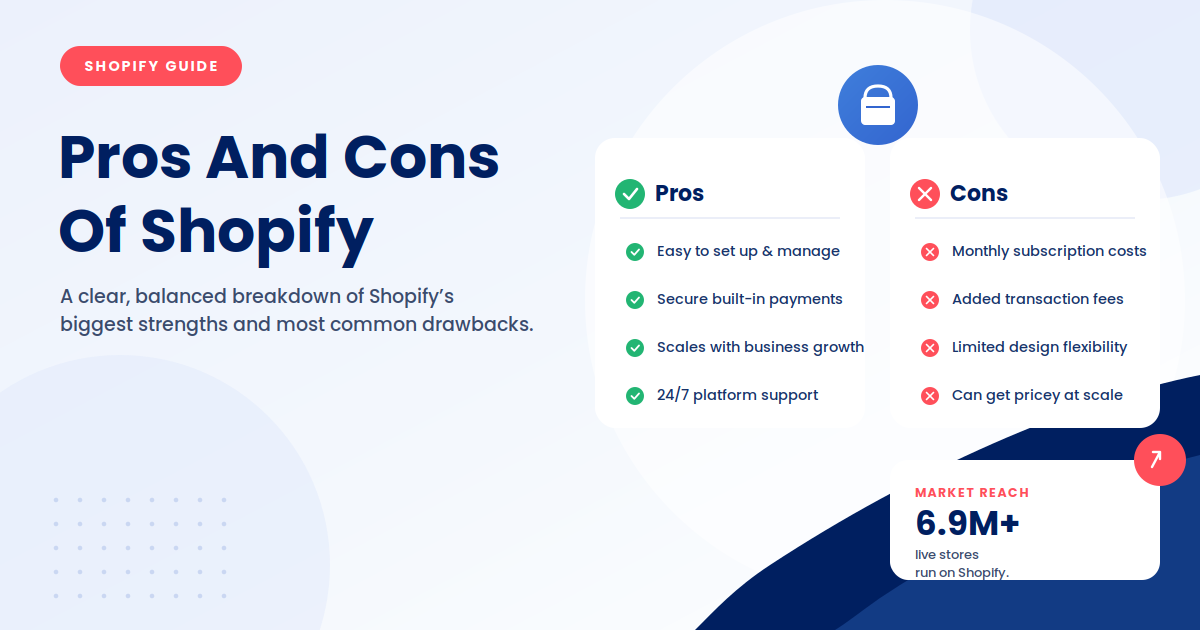
Critics highlight certain structural constraints that limit Shopify’s SEO flexibility. The platform enforces an opinionated URL format (for example, /products/ or /collections/) that cannot be customized, which may not align with every SEO strategy. Advanced users also point out the reliance on apps for deeper control over structured data, redirects, or speed optimization. Additionally, Shopify’s hosted nature means you do not have access to server-level configurations such as .htaccess or advanced caching logic.
Shopify SEO Features Overview
SEO settings in Admin
Shopify provides built-in SEO controls within its Admin panel, making it easy for merchants to manage essential search elements without technical knowledge. According to the Shopify Help Center, every product, collection, and page includes fields for page titles, meta descriptions, and URL handles. The Search Listing Preview helps visualize how your page will appear in Google search results, allowing you to fine-tune messaging for better click-through rates. You can also create and manage 301 redirects when changing URLs to preserve link equity and prevent broken links.
Platform conveniences
Shopify automates many technical SEO fundamentals so store owners can focus on content and merchandising. Each store includes an auto-generated XML sitemap, which updates automatically as products, collections, or pages are added or removed. The platform applies canonical tags by default to help prevent duplicate content issues across product and variant URLs. Every store runs on secure HTTPS (SSL), which protects user data and contributes to better search trust signals. Additionally, mobile-friendly themes ensure pages load responsively across devices, aligning with Google’s mobile-first indexing requirements.
Shopify education
Shopify also supports its users with extensive SEO resources. The Shopify Blog and Help Center include detailed guides, checklists, and tutorials for both beginners and experienced store owners. These resources cover keyword targeting, on-page optimization, structured data, and link-building strategies. For merchants new to SEO, Shopify’s educational content provides a clear roadmap to improving search performance while staying aligned with best practices.
Quick Start: Day-One Setup
Connect Google Search Console and Submit Sitemap
Start by linking your Shopify store to Google Search Console. This connection allows Google to track and index your pages efficiently. Once your store is live, copy your domain and add it as a new property in Search Console. Shopify automatically generates a sitemap at yourstore.com/sitemap.xml, so you can submit this directly within Search Console. Verifying your site and submitting the sitemap ensures that your products, collections, and content pages are discovered quickly and accurately by Google.
Configure Store-Wide Preferences and Social Sharing
Next, head to Settings → Preferences in your Shopify Admin. Set your homepage title and meta description, as these form the first impression users see in search results. Include your brand name, core keywords, and a clear value proposition. Then review your social sharing image and metadata to ensure your brand appears professional when shared on platforms like Facebook or X. These fields support both SEO and engagement by ensuring consistency across channels.
Create Initial Redirects for Any Slug Changes
If you rename a product, collection, or page, Shopify can automatically create a 301 redirect to preserve your SEO equity. You can also manage redirects manually under Online Store → Navigation → View URL Redirects. Set redirects for any URLs that have been changed or retired to prevent broken links and maintain crawl integrity. For example, if a product handle changes from /blue-mug to /ceramic-mug-blue, create a redirect so users and search engines seamlessly reach the new page.
On-Page SEO for Shopify
Product, Collection, Blog, and Page Templates
Shopify makes on-page optimization accessible through its intuitive Admin editor. According to the Shopify Help Center, each product, collection, blog post, and static page includes editable fields for titles, meta descriptions, and URL handles. These appear under the Search Engine Listing Preview section. Focus on concise, keyword-rich titles and descriptive meta text that reflects both the searcher’s intent and your brand’s tone. For product and collection pages, include unique value propositions that distinguish them from other listings.
Image SEO
Shopify makes adding alt text simple. Go to Products → Media → Edit alt text for each image. Write a clear, natural description of what appears in the image. For example, use “black leather wallet with zipper” rather than a keyword-stuffed phrase.
Technical SEO on Shopify
Improve Site Speed and Core Web Vitals
Shopify gives you the tools to monitor and improve page performance, but optimization is in your hands. Start by running your store through Online Store → Themes → Edit code → Preview → Inspect → Lighthouse or use Google PageSpeed Insights. If your store loads slowly, first audit your theme. Uninstall old or unused themes and test using Shopify’s Dawn or another lightweight theme for a baseline comparison.
Next, review apps under Settings → Apps and sales channels. Each app can add scripts that slow your store. Remove or disable any that are not critical to sales or tracking. For media, compress and resize images before uploading with tools like TinyIMG or Shopify’s built-in compression, and ensure product photos do not exceed the display size. Finally, check Online Store → Preferences → Analytics and remove redundant tracking pixels or scripts to reduce JavaScript load.
Improving image load speed
Large files can slow your store, which affects SEO and user experience. Before uploading, compress images using tools like TinyIMG, Crush.pics, or Shopify’s built-in compression. Shopify automatically serves images through its Content Delivery Network (CDN), but you can further improve load times by resizing images to match the display size in your theme (for example, 1000×1000 pixels for product images).
Canonicals, Robots Controls, and URL Patterns
Shopify automatically generates canonical tags for products, collections, and blog posts to signal preferred URLs. You can inspect these under View Page Source to confirm they point to the correct version. If you need to adjust canonical behavior for custom templates, you can add a custom tag in your theme code under Edit Code → theme.liquid.
Your robots.txt and sitemap.xml are generated automatically and update whenever you add or remove pages. You can view them by visiting yourstore.com/robots.txt and yourstore.com/sitemap.xml. Avoid editing these files unless you have specific indexing requirements, as Shopify manages them safely by default.
Shopify’s URL structure is fixed, meaning /products/ and /collections/ paths cannot be removed. Work within these defaults by creating clean, keyword-focused handles for each product and collection. Always set up redirects under Online Store → Navigation → View URL Redirects when you rename handles to prevent crawl errors and preserve link equity.
Structured Data in Shopify
Most modern themes in the Shopify Theme Store include structured data for products, organizations, and breadcrumbs. To verify, check Online Store → Themes → Edit Code → product.liquid and search for “@type”: “Product”. You can test pages using Google’s Rich Results Test to confirm your schema is valid.
If your theme lacks the schema types you need (for example, FAQ, HowTo, or Review markup), install a reputable structured data app such as JSON-LD for SEO or Yoast SEO for Shopify. These apps make it easier to add and manage schema without manual coding.
Common Challenges and Limitations
Opinionated URL Structure
Shopify enforces a fixed URL format that cannot be fully customized. As TinyIMG explains, all products must appear under /products/, and all collections under /collections/. You cannot modify this routing or use .htaccess files to rewrite URLs because Shopify is a hosted platform. While this structure is clean and consistent, it limits flexibility for advanced SEO strategies that rely on fully customized paths. To work within this limitation, create clear, keyword-focused handles and use redirects when renaming URLs to preserve authority.
Over-Reliance on Apps for Advanced Features
According to Website Builder Expert, Shopify covers the basics well, but more complex SEO needs often require additional apps. Features like advanced schema markup, detailed redirect control, or bulk metadata editing may depend on third-party tools. While these apps can enhance capabilities, each adds cost, maintenance, and potential script load. Merchants should carefully evaluate which apps deliver real SEO value and keep the stack lean to prevent conflicts or speed issues.
Theme and Script Bloat
Shopify notes that poorly optimized themes and excessive app scripts are a leading cause of slow performance. Many themes include large CSS and JavaScript bundles that load across all pages, even when not needed. Each app can also inject its own script. To prevent bloat, uninstall unused apps, remove legacy snippets, and minify code in the theme editor. Regularly test speed using Google PageSpeed Insights or Shopify’s Online Store Speed report to maintain healthy Core Web Vitals.
Community Perspective: Focus on Fundamentals First
Conversations on eCommerce Fastlane and Reddit show that many new Shopify merchants struggle with where to start on SEO. The consensus among experienced users is to focus first on fundamentals: optimize product titles and descriptions, compress images, and build content depth before investing in advanced apps or customizations. Shopify provides a solid SEO foundation, but real results come from consistent content quality, internal linking, and technical maintenance.
International and Multistore Considerations
Choose your global structure with Shopify Markets
Shopify Markets lets you serve countries and languages from one store while keeping search signals clear. You can map each market to a primary domain, a subdomain, or a subfolder. As a simple rule of thumb, subfolders concentrate authority on one root, country domains support strong local branding, and subdomains sit between the two. Pick one model and apply it consistently across all markets.
Native in Markets
Shopify can localize currency, pricing, and checkout. It can also generate alternate language versions and will often output language and region tags in the page head when multiple languages are enabled. Sitemaps update automatically for new pages and language versions.
App assisted
For large catalogs or complex rules you may want an app to manage translations, market specific content, or advanced language switchers. Popular translation apps can also help keep one to one pairs in sync across locales.
Theme customization
Use Liquid to fine tune locale links in headers and footers, to expose a language or country selector, or to add missing link tags for alternates in rare cases.
When to use a second store
One store with Markets is easiest for most brands. Consider a separate store only if you need distinct apps, separate inventory rules, different payment gateways, or teams that manage content independently. If you split stores, mirror your structure, keep naming consistent, and interlink equivalents across stores.
Conclusion
Shopify offers one of the most SEO-friendly environments among hosted eCommerce platforms. Its technical foundation, clean URL structure, and automatic sitemaps make it easy for merchants to start ranking without deep technical work. When optimized correctly, Shopify stores can perform exceptionally well in search results, driving steady traffic and sustainable sales. The key lies in combining platform tools with consistent optimization, from content quality to image performance and internal linking.
If you want expert guidance on improving your Shopify store’s SEO, consider engaging First Page Digital’s SEO services. Our team is experienced in optimizing Shopify and other eCommerce platforms. We can help you refine your store structure, speed, and on-page content to unlock better rankings and higher conversions.