I’ve audited hundreds of sites over the past five years, and schema markup is almost always the last thing businesses think about, and one of the first things holding them back.
You can have great content, solid backlinks, and a fast-loading site, but if search engines are still guessing what your pages actually mean, you’re leaving rich results, click-throughs, and authority signals on the table.
This guide covers everything you need to know, from what structured data markup actually is, to how to implement it correctly on WordPress and Shopify, validate it, and avoid the mistakes that silently kill your results.
What Is Schema Markup?
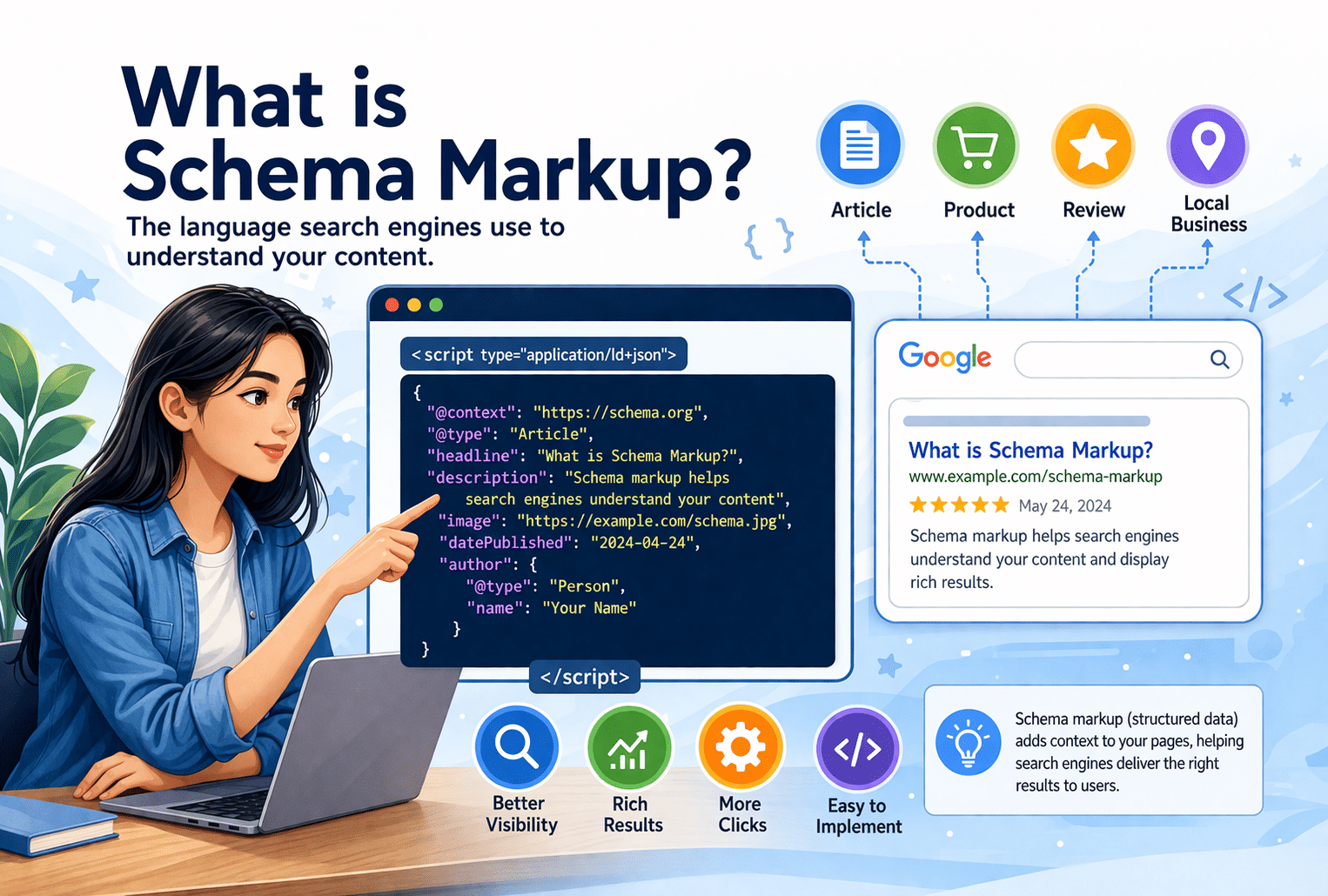
Schema markup, also called structured data markup, is code you add to your HTML to explicitly help search engines understand your content and display it more accurately.
Think of it this way: a human reading your page about a “Dewalt handsaw” instantly knows the brand, the product type, and what it’s used for.
Google’s crawlers? They’re making educated guesses.
Schema markup removes that guesswork by labeling each piece of content, brand name, price, rating, author, and more, in a language search engines actually understand.
What a Structured Data Markup Looks Like
Here’s a simple structured data markup example using JSON-LD, the format Google recommends:
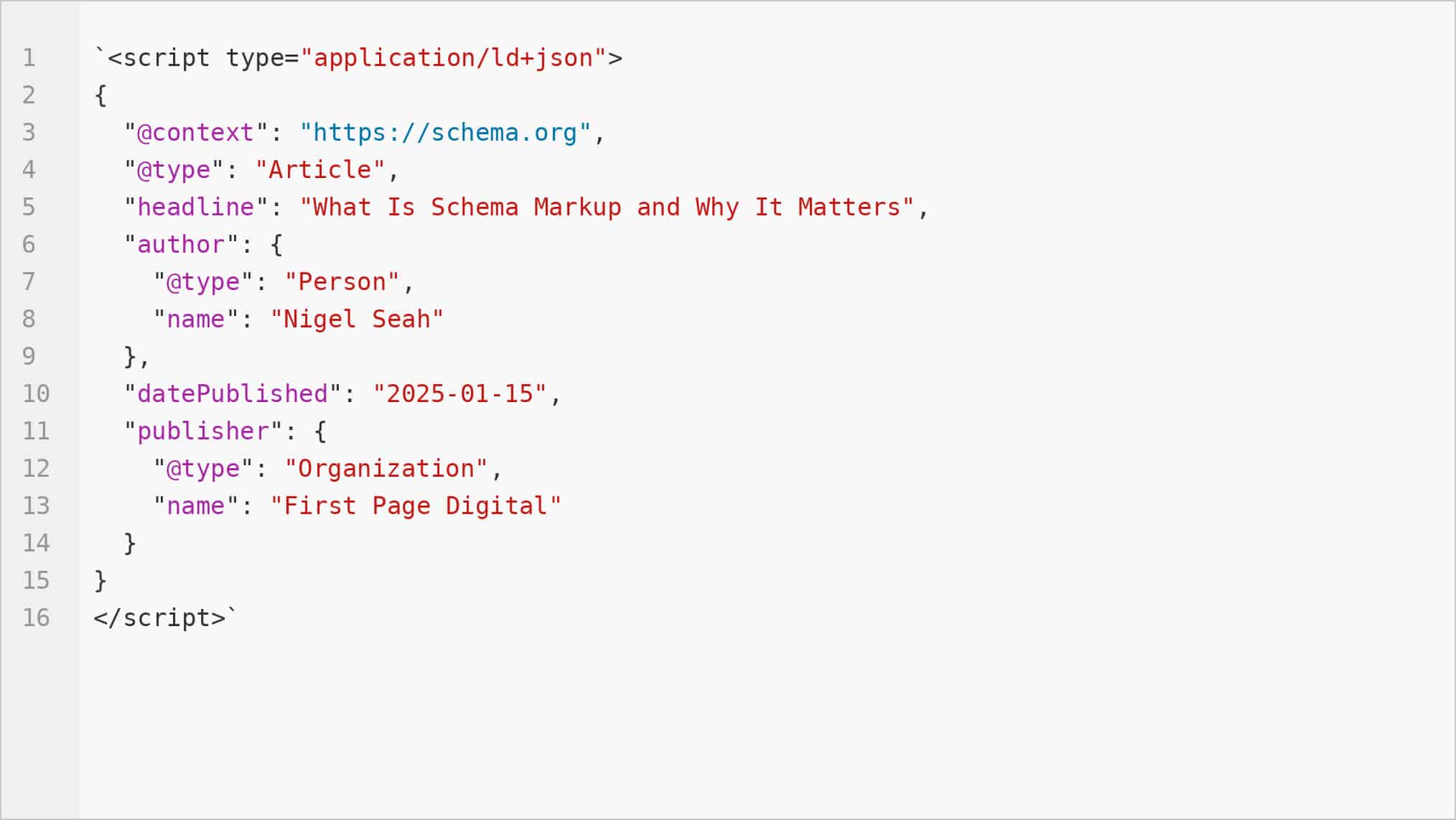
You drop this script block into your page’s HTML (usually in the <head> or just before </body>), and it tells Google:
“This is an article, written by this person, published by this organization, on this date.”
Clean, direct, no ambiguity. That’s the whole idea behind structured data markup.
Structured Data vs. Schema Markup: Is There a Difference?
These two terms get used interchangeably all the time, and honestly, it confused me too when I first started.
Here’s the short version: structured data is the broader concept. It refers to any standardized format that organizes information so machines can read it.
Schema markup is the specific vocabulary you use to create that structured data on web pages.
So when someone says “add structured data to your site,” they mean implement schema markup using the Schema.org vocabulary.
Schema.org is the shared dictionary. Structured data is the strategy. Schema markup is the actual implementation.
You need all three ideas to make sense of how this works in practice.
How Schema.org Fits Into the Picture

Schema.org was launched in 2011 as a joint project by Google, Bing, Yahoo, and Yandex.
The goal was simple but ambitious: create one shared vocabulary that all major search engines could use to understand web content.
Before Schema.org, every search engine had its own way of interpreting structured data, which was a nightmare for developers trying to support multiple platforms.
Every schema type you’ll ever use, Article, Product, LocalBusiness, FAQ, Person, comes from Schema.org.
When you implement schema org for SEO, you’re essentially tagging your content using terms that all major search engines have agreed to recognize.
It’s the foundation that makes schema implementation in SEO consistent and scalable across every platform you care about ranking on.
Schema Markup and Google’s Knowledge Graph
Google’s Knowledge Graph is a massive behind-the-scenes database that maps relationships between entities: people, places, things, concepts.
It’s what powers those fact boxes you see on the right side of Google search results, and it’s also what enables Google to answer “what’s the capital city of the country with the Eiffel Tower?” without the word “Paris” appearing in the query at all.
Schema markup feeds directly into this. When you implement connected schema markup that defines your brand, your authors, your products, and their relationships to each other, you’re contributing data that Google can use to place your entities in its Knowledge Graph.
Get it right, and you can strengthen or even trigger a Knowledge Panel for your brand. That kind of visibility isn’t something you can buy with ad spend.
Why Is Schema Markup Important for SEO?

Source: Google
1. It Helps Search Engines Understand Your Content
Search engines use machine learning, but machines still don’t read context the way humans do.
Without schema, Google sees a page about “apple” and has to figure out whether you mean the fruit, the company, or a New York City nickname.
Schema markup eliminates that confusion by explicitly defining what every element on your page means.
This matters more than most people realize. Better content comprehension means Google can match your page to more relevant queries, including ones you didn’t specifically optimize for.
That kind of semantic relevance compounds over time.
2. It Unlocks Rich Results and Higher Click-Through Rates
Rich results are those enhanced search listings showing star ratings, prices, FAQs, event dates, or recipe cook times directly in the SERP.
They only appear when Google can read and verify schema markup on your page.
And they work: pages with rich results consistently see higher click-through rates than plain blue links.
I’ve seen product pages go from a 3% CTR to over 8% just by adding valid Product schema with review markup.
You’re not changing your ranking position, you’re making your listing more clickable than everything around it.
3. It Future-Proofs Your Site for AI Search
AI-powered search tools, including Google’s AI Overviews and LLMs like ChatGPT, rely heavily on structured, factual data to generate accurate responses.
When your content is annotated with schema markup, it becomes part of the machine-readable data layer that AI systems can draw from directly.
Gartner has flagged knowledge graphs (which schema markup helps build) as a critical enabler of generative AI adoption.
Implementing schema now is essentially building the infrastructure that will matter most in the next generation of search.
4. It Reinforces Your E-E-A-T Signals
Google’s E-E-A-T framework (Experience, Expertise, Authoritativeness, and Trustworthiness) isn’t just about content quality.
It’s about demonstrating the credibility behind your content. Schema markup supports this by making authorship, credentials, organizational identity, and content relationships machine-readable.
When you use Person schema to link an author to their credentials, or Organization schema to establish your brand’s identity, you’re giving Google structured evidence of who you are.
That’s not a magic ranking lever, but it’s a meaningful signal that strengthens your overall authority over time.
Types of Schema Markup You Should Know

1. Article and Blog Post Schema
Article schema tells Google that a piece of content is editorial in nature: a news article, a blog post, or a long-form guide.
The key properties to include are headline, author, datePublished, and publisher. Miss any of these and you’re leaving context on the table.
This schema type is particularly useful for content that you want to appear in Google’s Top Stories carousel or Discover feed.
Without it, even a well-written post can look generic to Google’s algorithms.
2. Product Schema for E-commerce
Product schema is where things get commercially interesting.
It lets you mark up product name, description, price, availability, brand, and customer ratings so Google can display that data directly in search results as a rich result.
For anyone figuring out how to add schema code to a Shopify site, most themes support JSON-LD natively.
But you often need to customize the Product schema template to include review data and availability status properly.
That customization step is what most default setups miss.
3. Local Business Schema
LocalBusiness schema is non-negotiable for any brick-and-mortar or service-area business.
It communicates your business name, address, phone number, opening hours, geographic coordinates, and business category to search engines clearly and consistently.
Consistent LocalBusiness schema across your site also reinforces your NAP (Name, Address, Phone) data, which directly supports your local pack rankings.
It’s one of those foundational schema types where the effort-to-impact ratio is genuinely high.
4. FAQ Schema
FAQ schema marks up question-and-answer content so Google can display it as an expandable FAQ block directly in the SERP.
It’s one of the most effective schema types for claiming extra real estate on the search results page, especially for informational queries.
The catch? Google only shows FAQ rich results when the questions and answers are genuinely on the page, visible to users.
If you try to add FAQ schema to content that doesn’t actually have a Q&A format, it won’t be validated. Keep it honest and it works beautifully.
5. Review and Rating Schema
Review schema lets you mark up individual reviews, and AggregateRating schema lets you display an average score from multiple reviews.
Those gold star ratings you see in search results? That’s AggregateRating schema doing its job.
One thing I always tell clients: Google won’t display self-serving reviews. The reviews need to exist on your site, attributed to real users.
Third-party review platforms like Trustpilot or Google Reviews don’t pass this schema through automatically, so you need to ensure the data lives on your own pages too.
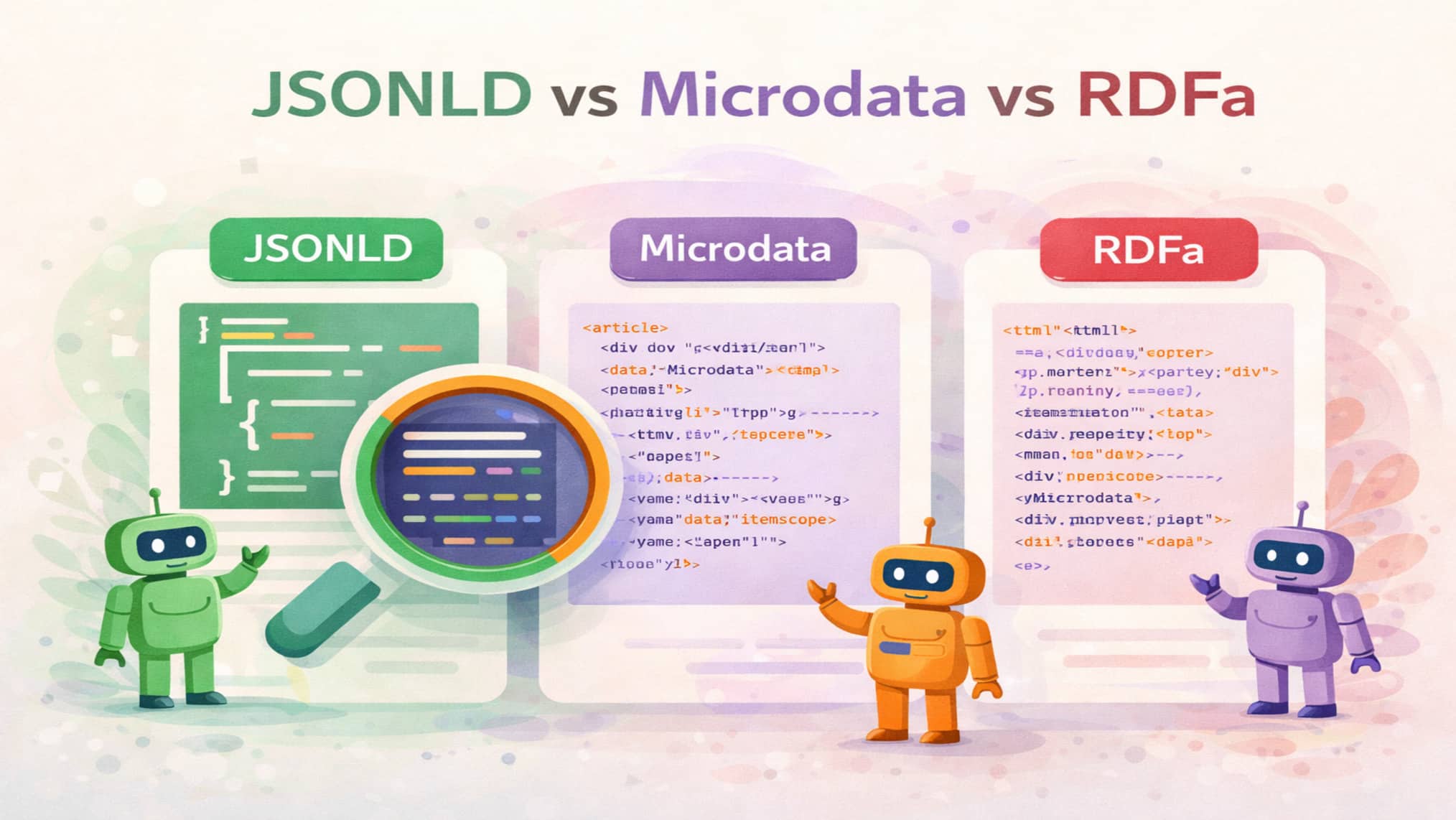
JSON-LD, Microdata, and RDFa: Which Format Should You Use?
What Is JSON-LD?
JSON-LD (JavaScript Object Notation for Linked Data) is a script block you insert into your HTML, usually in the <head> or just before </body>.
It sits completely separate from your visible HTML content. Your page markup stays clean, and your schema lives in its own isolated block.
Google has been explicit about recommending JSON-LD above the other formats, and most of Google’s own documentation uses it exclusively in examples.
If you’re figuring out how to add schema code in WordPress, plugins like Yoast SEO and Rank Math both output JSON-LD by default.
It’s also the easiest format to generate with any schema markup generator tool.
What Is Microdata?
Microdata works differently. Instead of a separate script block, you add special HTML attributes (itemscope, itemtype, itemprop) directly to your existing HTML elements.
The schema is woven right into your page structure, inline with the content it describes.
It works fine for basic implementations, but scale becomes a real problem fast.
When I worked on a large e-commerce client with thousands of product pages using Microdata, a single Schema.org spec update meant modifying templates across the entire site.
That took weeks. With JSON-LD, it would’ve been a template-level update in a day.
What Is RDFa?
RDFa (Resource Description Framework in Attributes) is the oldest of the three formats and is similar to Microdata in that it annotates HTML elements directly with structured data attributes.
It was originally designed for the Semantic Web, and it supports a broader range of vocabularies beyond Schema.org.
In practice, very few modern SEO implementations use RDFa from scratch. You’ll encounter it mainly on older sites or platforms built on certain CMS architectures.
Google supports it, but it comes with the same maintenance complexity as Microdata, without the newer tooling support that JSON-LD enjoys.
Which Format Should You Use for Schema Implementation in SEO?
Go with JSON-LD. That’s not just my preference after five-plus years doing this, that’s Google’s recommendation too.
It keeps your schema separate from your HTML, it’s easier to debug, it’s easier to update, and virtually every modern schema markup generator produces it by default.
The only exception worth considering is if you’re working on a legacy system where the dev team can’t inject script blocks into the head or body.
In that case, Microdata is a workable fallback. But if you’re starting fresh, whether you’re implementing on WordPress, Shopify, or a custom build, JSON-LD is the answer every time.
Once implemented, always use Google’s Rich Results Test to validate schema markup and confirm everything is reading correctly before you push live.
Good. I have enough from my research. Here is the full content:
How to Implement Schema Markup Step by Step

Source: Google
Step 1: Identify the Right Schema Type for Your Page
Before you write a single line of code, you need to decide what type of schema actually fits the page.
Google doesn’t reward guesswork here. A blog post needs Article schema, a product page needs Product schema, a location page needs LocalBusiness schema, and so on.
Head to schema.org and browse the type hierarchy to confirm you’re choosing the right one.
The site lists every schema type along with its required and recommended properties, so there’s no reason to guess.
Getting this step wrong means valid code that still earns you nothing in the SERPs.
Step 2: Generate Your Schema Code
Using a Schema Markup Generator
If you’re not writing JSON-LD from scratch, a schema markup generator is your best friend. Merkle’s Schema Markup Generator is one I recommend regularly.
It lets you select your schema type, fill in the fields through a form interface, and outputs clean, ready-to-use JSON-LD code without you touching a single bracket.
Rank Math’s built-in schema builder inside WordPress works the same way.
Pick your schema type, fill in the details, and the plugin handles the output.
These tools are very useful when you need to create my custom schema markup code without a developer on standby 🛠️.
Building Custom Schema
Sometimes a generator won’t cover everything, especially for more complex types like Service schema or nested Product markup with multiple offers.
That’s when you’ll need to build it manually using schema.org as your reference.
- Go to schema.org
- Find your schema type (for example, schema.org/Service), and
- Read through the available properties.
Required properties are marked, recommended ones are listed separately, and you can see real examples of how the markup should look.
- Write your JSON-LD block using those property names exactly as listed.
This is because even a small typo means the markup won’t validate.
Step 3: Add the Code to Your Site
Once your JSON-LD block is ready, you wrap it in a <script type=”application/ld+json”> tag and paste it into your page’s HTML, either in the <head> section or just before the closing </body> tag.
Both locations work fine for Google.
On platforms like WordPress or Shopify, you have more specific options like plugins or theme file edits (covered in detail below).
What you want to avoid is adding the script to a section that gets cached differently from the rest of the page.
This is something I’ve seen trip up schema on JavaScript-heavy sites more than once.
Step 4: Validate Schema Markup Using Google’s Rich Results Test
After adding your schema, always validate it before calling it done.
- Go to Google’s Rich Results Test (search.google.com/test/rich-results)
- Paste in your URL or your raw code, and
- Run the test.
It tells you immediately whether your markup is valid, which rich results you’re eligible for, and what errors or warnings need fixing.
Errors mean the markup is broken and won’t qualify for any rich results. Warnings mean it’s readable but missing recommended properties that would strengthen your eligibility.
Fix the errors first, then work through the warnings one by one.
Step 5: Monitor Performance in Google Search Console
Implementing schema is step one. Knowing whether it’s actually working is step two.
In Google Search Console, go to the Enhancements section in the left sidebar.
You’ll see reports for each schema type Google has detected on your site, broken down by valid items, items with warnings, and items with errors.
If a schema type is detected but showing errors at scale, GSC will tell you exactly which pages are affected and what’s wrong.
I check this monthly for client sites because schema errors can silently accumulate after content updates, template changes, or plugin conflicts.
How to Add Schema Code in WordPress

1. The Automatic Method: Using a Plugin
Using Rank Math
Rank Math is my go-to recommendation for WordPress schema because it gives you granular control over every schema type without any coding required.
After installing it, go to the Schema tab in the post or page editor, click “Add Schema,” and select the type you need from the library.
Each schema type comes with its own field set so you fill in the title, description, author, rating, and any other relevant properties through the UI.
Rank Math outputs clean JSON-LD and automatically references your existing post meta where possible, which saves time when you’re scaling across hundreds of pages.
Using Yoast SEO
Yoast SEO handles schema differently by building a connected schema graph automatically, covering your site’s Organization or Person identity, your pages as WebPage entities, and your posts as Article entities.
It pulls this together in the background using your site settings, which is why it’s worth setting up the Yoast SEO configuration wizard fully before relying on it.
For more specific schema types like FAQ or HowTo, Yoast adds schema blocks directly inside the Gutenberg editor.
Add a FAQ block, fill in your questions and answers, and Yoast automatically outputs the corresponding FAQ schema alongside your content.
It’s clean, but it’s also less flexible than Rank Math for complex or custom schema types.
2. The Manual Method: Without a Plugin
Via Your Child Theme’s Header File
If you want to add site-wide schema, like Organization schema that should appear across every page, you can add it directly to your child theme’s header.php file.
Open the file, find the <head> section, and paste your JSON-LD block there.
Always use a child theme for this. If you edit the parent theme directly, your schema disappears the moment you update the theme.
A child theme preserves your customizations through updates, which is one of the most basic WordPress best practices I still see people skip.
Via a Code Snippets Plugin
For page-specific schema without touching theme files, a plugin like WPCode (formerly Insert Headers and Footers) or the Code Snippets plugin is the cleaner option.
Both let you paste a JSON-LD block and set conditions for where it fires, so you can target specific pages, post types, or URLs.
This is especially useful when you want to add schema to a handful of landing pages without creating a whole custom template.
Set the condition, paste your JSON-LD, save, and validate it immediately in the Rich Results Test to confirm it’s showing up as expected.
How to Add Schema Code to a Shopify Site

1. Using Shopify’s Built-In Liquid Structured Data
Most Shopify themes (especially ones built on Dawn or other official base themes) already include Product schema baked into the product template via Liquid.
When a customer views a product page, the theme dynamically renders JSON-LD using the product’s actual data, including name, price, description, and availability.
The problem is that default Liquid schema is often incomplete.
It typically misses AggregateRating properties and sometimes outputs the wrong availability values, both of which are required for Product rich results.
Before assuming your Shopify schema is working, always run your product pages through the Rich Results Test to see exactly what Google is reading.
2. Adding Custom Schema to Your Shopify Theme Files
To add or customize schema in Shopify:
- Go to Online Store,
- Then Themes
- Click Actions, and
- Select Edit Code.
The schema for product pages usually lives in sections/main-product.liquid or templates/product.liquid depending on your theme.
You can edit the existing JSON-LD block there or add a new <script type=”application/ld+json”> block using Liquid variables like {{ product.title }}, {{ product.price | money_without_currency }}, and {{ product.available }} to pull dynamic data.
Once you save, validate it immediately with the Rich Results Test because Liquid syntax errors can break the entire JSON block silently.
3. Shopify Apps That Handle Schema Markup for You
If editing Liquid files feels like too much, several Shopify apps manage schema automatically. Some tools that are among the most used options include:
- TinyIMG
- JSON-LD for SEO, and
- Schema Plus for SEO.
They inject structured data across your product, collection, and blog pages without requiring any code edits.
The tradeoff is that some apps apply generic schema that still needs customization to include review data or return policy markup properly.
Treat any app as a starting point and verify the output, not a finished solution.
Common Schema Markup Mistakes (And How to Avoid Them)

1. Marking Up Content That Isn’t on the Page
This is probably the most common schema mistake I see, and Google actually penalizes for it.
If your schema says your product has a 4.8-star AggregateRating but there are no visible reviews on the page, you’re marking up content that isn’t there.
Google calls this “misleading structured data” and it can lead to manual actions against your site.
Every property in your schema needs to be verifiable from the visible content on that same page.
If the rating exists on a third-party platform but not on your own page, don’t put it in your schema. Add the review data to the page first, then mark it up.
2. Using Outdated or Deprecated Schema Types
Schema.org evolves regularly. Types and properties that worked fine two years ago get deprecated, renamed, or replaced.
If you set up schema once and never revisit it, there’s a good chance some of your markup is referencing types Google no longer recognizes.
The fix is straightforward: check schema.org for any types you’re using and look for the “superseded by” note next to deprecated properties.
Run your pages through the Rich Results Test periodically and treat any “invalid type” warning as a priority fix, not something to leave for later.
3. Duplicate Markup Conflicts Between Plugins
If you’re running both Yoast SEO and Rank Math simultaneously (which nobody should be doing, but it happens), both plugins will output their own JSON-LD blocks for the same page.
Google ends up reading conflicting schema for the same entity, which creates confusion and usually means neither version wins a rich result.
The same problem can occur on Shopify when a theme outputs Product schema and an installed app outputs its own Product schema on the same page.
Before installing any schema plugin or app, check what’s already there using Chrome’s Inspect tool or the Rich Results Test.
One authoritative source of schema per page is always the goal.
Time to Get Your Schema Markup Right
Schema markup helps search engines understand your content, unlocks rich results that drive more clicks, and reinforces your E-E-A-T authority in ways that pure content optimization can’t replicate on its own.
If your site isn’t using structured data yet, or you’re not sure whether what’s there is actually working, that’s exactly where First Page Digital comes in.
The technical SEO team Singapore businesses trust to handle schema implementation end-to-end, from audit to deployment to ongoing monitoring.
Book your FREE strategy session today, valued at $2,000, and let’s make sure your site shows up the way it should.
Frequently Asked Questions
Is schema markup a ranking factor?
Schema markup is not a direct ranking factor. Google has confirmed this, but implementing it correctly can improve your click-through rate through rich results, which indirectly supports better SEO performance.
What is the difference between JSON-LD and microdata?
JSON-LD sits in a separate script tag and does not touch your HTML. Microdata is embedded inside the HTML itself. Google recommends JSON-LD because it is cleaner, easier to maintain, and less prone to breaking during site updates.
How do I validate schema markup?
Use Google’s Rich Results Test by pasting in your URL or code. It flags errors and warnings instantly. You can also check the Enhancements section in Google Search Console for site-wide schema health reports.
Can I use a schema markup generator without coding experience?
Yes. Tools like Merkle’s Schema Markup Generator and Rank Math’s built-in schema builder let you fill in fields and generate ready-to-use JSON-LD code without writing a single line yourself.